
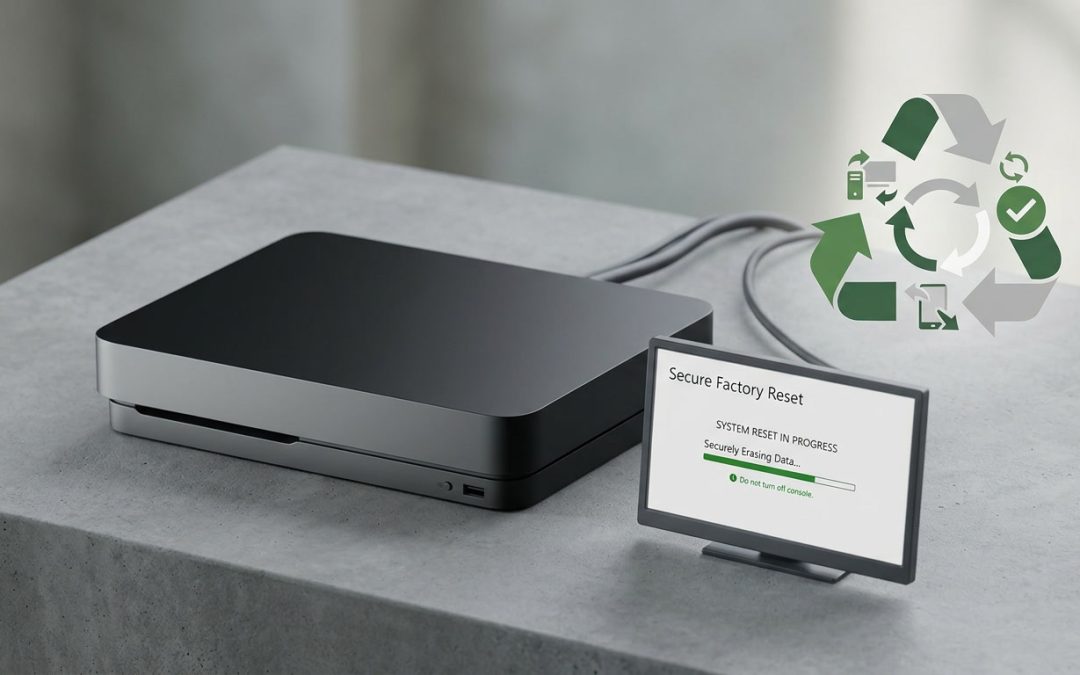
Your Gaming Console Knows More About You Than You Think
Gaming consoles aren’t just for gaming anymore. They store payment card details, email addresses, saved passwords, linked social media accounts, personal messages, photos, and browsing history. A PlayStation, Xbox, or Nintendo Switch that hasn’t been properly wiped before changing hands is a potential data security nightmare.
Whether you’re selling your old console, giving it to a friend, donating it, or recycling it, removing your personal data should be the first thing you do. The process varies by platform, but it’s straightforward on every major console once you know the steps.
What Data Is Stored on Your Console
Before wiping anything, it’s worth understanding just how much personal information your console holds. Modern consoles are essentially specialised computers that accumulate significant personal data over their lifetime.
Account credentials include your console manufacturer account (PlayStation Network, Xbox Live, Nintendo Account), email addresses, and sometimes two-factor authentication settings. Payment information includes saved credit cards, debit cards, and PayPal accounts used for purchasing games and subscriptions.
Social data includes friend lists, messages, party chat history, and shared content. Game saves and profiles contain your progress, achievements, and personalised settings. Media includes screenshots, video captures, and any photos stored on the console. Browsing data from the console’s web browser includes history, cookies, and saved logins. And Wi-Fi passwords for every network the console has connected to are also stored.
- PSN/Xbox Live/Nintendo account credentials
- Saved payment cards and PayPal details
- Friend lists and private messages
- Browsing history and saved passwords
- Wi-Fi network passwords
- Screenshots and video captures
- Streaming service logins (Netflix, Disney+, etc.)
PlayStation 4 and PlayStation 5
Before resetting, back up any game saves you want to keep to PlayStation Plus cloud storage or a USB drive.
For PS4: Go to Settings, then Initialisation, then Initialise PS4. Select “Full” rather than “Quick” for a more thorough wipe. The full initialisation overwrites data on the internal storage, making it significantly harder to recover. This process takes several hours depending on your drive size.
For PS5: Go to Settings, then System, then System Software, then Reset Options, then Reset Your Console. Choose “Reset” to remove all data and restore factory settings. If you want to be thorough, also go to Settings, then Users and Accounts, and deactivate the console as your primary PS5 before resetting.
Important: Deactivate your console from your PSN account before wiping. Go to Settings, Users and Accounts, Other, Console Sharing and Offline Play (PS5) or Activate as Your Primary PS4 (PS4), and deactivate. This unlinks your account from the hardware, preventing the next owner from accessing your digital purchases or account.
Xbox One and Xbox Series X/S
Xbox makes the process relatively simple with a built-in reset option.
Go to Settings, then System, then Console Info, then Reset Console. You’ll see two options: “Reset and remove everything” and “Reset and keep my games and apps.” Choose “Reset and remove everything” for a complete wipe. This removes all accounts, settings, saved games, and data from the console.
Before resetting, make sure your game saves are backed up to Xbox Cloud (included with Xbox Live Gold and Game Pass) if you want to keep them. Also remove your Xbox profile from the console by going to Settings, Account, Remove Accounts.
If you’re selling the console, also consider removing it from your Microsoft account online. Sign into account.microsoft.com, go to Devices, find the console, and remove it. This ensures a clean separation between your account and the hardware.
Nintendo Switch
The Nintendo Switch stores data both on internal memory and on any inserted microSD card. You need to address both.
Go to System Settings, then scroll down to System, then Formatting Options, then Initialise Console. This removes all data from the console’s internal memory, including user profiles, save data, screenshots, and software.
However, this does not erase the microSD card. If there’s a microSD card in your Switch, either remove it and keep it, or format it separately through System Settings, then System, then Formatting Options, then Format microSD Card.
Before resetting, deregister the console from your Nintendo Account. Go to the Nintendo eShop, select your user icon, scroll down to Deregister, and confirm. This is particularly important because a Nintendo Account can only have one primary console at a time, and if you don’t deregister, you may have issues setting up a new Switch later.
If you have a Nintendo Switch Online subscription, your cloud saves are retained in your Nintendo Account and will be accessible on a new console. Local save data that isn’t backed up to the cloud will be permanently lost after initialisation.
Handheld and Retro Consoles
Older consoles and handhelds also store data that should be removed. The process varies but the principle is the same: return the device to factory settings before it changes hands.
Nintendo 3DS/2DS: System Settings, Other Settings, Format System Memory. This removes your Nintendo Network ID link, so make sure to transfer it first if you plan to use it elsewhere.
PlayStation Vita: Settings, Format, Restore This System. This removes all data and content.
For truly retro consoles (original PlayStation, N64, GameCube), personal data is generally limited to save files on memory cards. Remove any memory cards before selling or recycling the console.
Streaming and Media Apps
Before wiping the console, sign out of all streaming and media apps individually. While the factory reset should remove all app data, signing out first provides an extra layer of security and immediately revokes the console’s access to your accounts.
Services to sign out of include Netflix, Stan, Disney+, Amazon Prime Video, YouTube, Spotify, Apple TV+, and any other streaming or media services you’ve used. Many of these services also allow you to remotely sign out of all devices through their website or app, which is a good backup measure after wiping the console.
External Storage
If you’ve used an external USB hard drive or SSD with your console, don’t forget to wipe that too. External drives used with gaming consoles contain game installations and may contain saved data.
The simplest approach is to format the external drive using a computer. On Windows, right-click the drive in File Explorer and select Format. On Mac, use Disk Utility. Choose a full format rather than a quick format for better data removal.
If you’re keeping the external drive for use with a new console or computer, formatting it is still recommended to start fresh.
After Wiping: Selling, Donating, or Recycling
Once your console is wiped clean, you can confidently sell, donate, or recycle it.
Selling: Working consoles in good condition retain decent resale value, particularly current-generation machines. Include all accessories (controllers, cables, power supply) to maximise value. List on Facebook Marketplace, Gumtree, or eBay with clear photos and honest condition descriptions.
Donating: Working consoles are welcome at many charities and community organisations. Children’s hospitals, youth centres, and community groups often appreciate gaming equipment. Confirm with the organisation before dropping off.
Recycling: Non-functional consoles should go to an e-waste recycling point, not the general rubbish bin. Consoles contain valuable metals, recyclable plastics, and electronic components that can be recovered through proper recycling. Council e-waste drop-off points accept gaming consoles.
- Back up any game saves you want to keep (cloud or USB)
- Sign out of all streaming and media apps
- Deactivate/deregister the console from your account
- Perform a full factory reset (not quick)
- Remove and wipe any external storage devices
- Remove any inserted discs, memory cards, or microSD cards
Taking ten minutes to properly wipe your console protects your financial data, your accounts, and your privacy. It’s a small investment of time for significant peace of mind. For broader data security guidance, see our guide to data breach prevention through proper IT asset disposal.
EWV helps Victorian businesses manage e-waste and IT asset disposal compliantly and sustainably — including collection, certified data destruction, and recycling. Contact us for a free quote.