
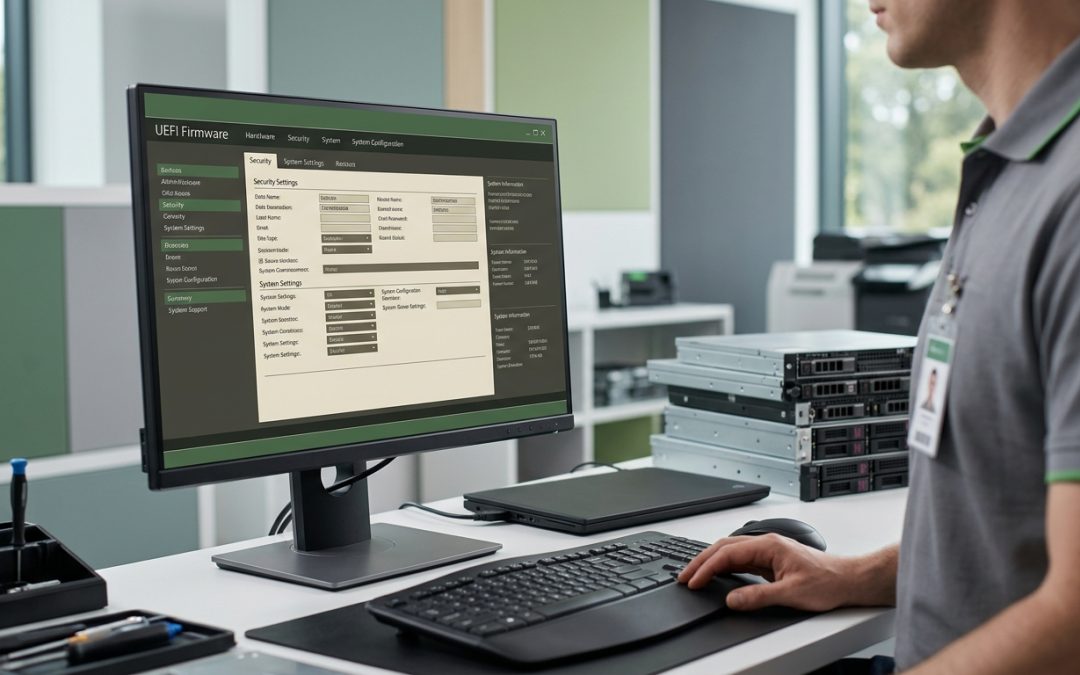
The Security Data Stored in Your System Firmware
Every computer has a foundational layer of firmware that runs before the operating system loads. In older systems, this is the BIOS (Basic Input/Output System). In modern systems, it is UEFI (Unified Extensible Firmware Interface). Both store configuration data and security settings that can contain sensitive information relevant to data destruction and IT asset disposal.
Understanding what BIOS and UEFI store, and why it matters for security, helps organisations ensure that system firmware is properly addressed during the disposal process.
What BIOS and UEFI Store
BIOS and UEFI firmware stores a range of system configuration data in non-volatile memory (typically flash memory on the motherboard). This data persists across power cycles and operating system installations. Key data categories include the following.
Hardware configuration: Boot device order, memory timing settings, CPU configuration, and peripheral device settings. While much of this is generic, the boot order can reveal information about the organisation’s infrastructure, such as network boot server addresses used for PXE deployment.
Security settings: BIOS/UEFI setup passwords, hard drive passwords (ATA passwords), Secure Boot configuration, and Trusted Platform Module (TPM) settings. Setup passwords control who can modify the firmware configuration, while hard drive passwords can prevent a drive from being accessed without the correct credentials.
Secure Boot keys: UEFI Secure Boot uses a set of cryptographic keys to verify that the operating system and boot loaders are trusted before execution. These include the Platform Key (PK), Key Exchange Keys (KEK), and the database of allowed and forbidden signatures (db and dbx). Custom Secure Boot configurations may include organisation-specific keys and certificates.
TPM ownership and keys: The TPM stores encryption keys, certificates, and platform measurements. While the TPM is a separate chip, its configuration and ownership are managed through the UEFI interface. BitLocker and similar encryption tools rely on the TPM to store keys securely.
UEFI variables: Modern UEFI implementations support non-volatile variables that can store arbitrary data. Operating systems and applications can use these variables to persist information across reboots, and some may contain sensitive configuration data.
Security Implications During Disposal
When IT equipment is disposed of without clearing the BIOS/UEFI, several security risks arise.
Password exposure: BIOS and hard drive passwords may be reused across multiple devices or may follow a pattern that reveals the organisation’s password strategy. An attacker who recovers these passwords from disposed equipment may be able to apply them to other devices still in use.
Infrastructure information: Boot configuration settings, including PXE boot server addresses, LDAP/Active Directory references, and network configuration, can reveal details about the organisation’s internal infrastructure. This information is valuable for reconnaissance and can be used to plan targeted attacks.
Encryption key exposure: If the TPM is not cleared before disposal, it may retain encryption keys that could be used to decrypt data from other sources. While the TPM is designed to resist key extraction, the risk of future vulnerabilities in TPM implementations means that clearing the TPM before disposal is a prudent precaution.
Secure Boot compromise: Custom Secure Boot keys and certificates installed by the organisation could potentially be extracted and used to sign malicious code that would be trusted by other systems with the same Secure Boot configuration.
BIOS vs UEFI: Key Differences for Disposal
Legacy BIOS systems store configuration in CMOS memory backed by a small battery. Clearing the CMOS by removing the battery or using a motherboard jumper resets all BIOS settings to factory defaults. This is a straightforward process that reliably clears passwords and configuration data.
UEFI systems store data in flash memory on the motherboard, which does not depend on a battery. UEFI configuration is more complex than legacy BIOS, with more data stored in non-volatile variables. Clearing UEFI settings requires either using the firmware’s built-in reset function or, in some cases, reflashing the firmware to factory defaults.
The increased complexity of UEFI means that a simple CMOS battery removal is not sufficient to clear all stored data on modern systems. A deliberate factory reset through the UEFI interface is required.
How to Clear BIOS/UEFI Before Disposal
The specific procedure varies by manufacturer, but the general approach involves the following steps. Enter the BIOS/UEFI setup utility (typically by pressing a key during boot, such as F2, Delete, or F10). Navigate to the security settings and remove or disable all passwords (setup password, user password, hard drive password). Clear the TPM if present, which is usually found under the security or advanced settings menu. Reset Secure Boot to factory defaults, which removes any custom keys and certificates. Load factory default settings for all other configuration options. Save and exit.
For servers with baseboard management controllers (BMCs), the BMC firmware should be reset separately, as it operates independently of the main BIOS/UEFI. See our article on firmware-level data for more on BMC considerations.
When Physical Destruction Is Preferred
For organisations disposing of equipment that contained classified or highly sensitive data, the time and effort required to verify that every firmware component has been properly cleared may not be justified. In these cases, physical destruction of the entire system, including the motherboard with its firmware chips, provides complete assurance that no residual data survives in any component.
Physical destruction is also the appropriate choice for equipment that is damaged and cannot be powered on to access the BIOS/UEFI settings, or for equipment where the BIOS/UEFI is password-protected and the password is unknown.
Automation for Fleet Disposal
For organisations decommissioning large numbers of systems, manually clearing BIOS/UEFI settings on each device is time-consuming. Some enterprise deployment tools and manufacturer-specific utilities support remote or scripted BIOS/UEFI configuration changes, which can be used to automate the reset process across a fleet of devices.
Dell, HP, and Lenovo all provide command-line utilities for their respective platforms that can clear passwords, reset Secure Boot, and restore factory defaults programmatically. Integrating these tools into the disposal workflow can significantly reduce the time required per device.
System firmware is a frequently overlooked data layer during IT asset disposal. Addressing it systematically eliminates a security gap that could otherwise expose sensitive configuration data and credentials from disposed equipment.
EWV helps Victorian businesses manage e-waste and IT asset disposal compliantly and sustainably — including collection, certified data destruction, and recycling. Contact us for a free quote.