
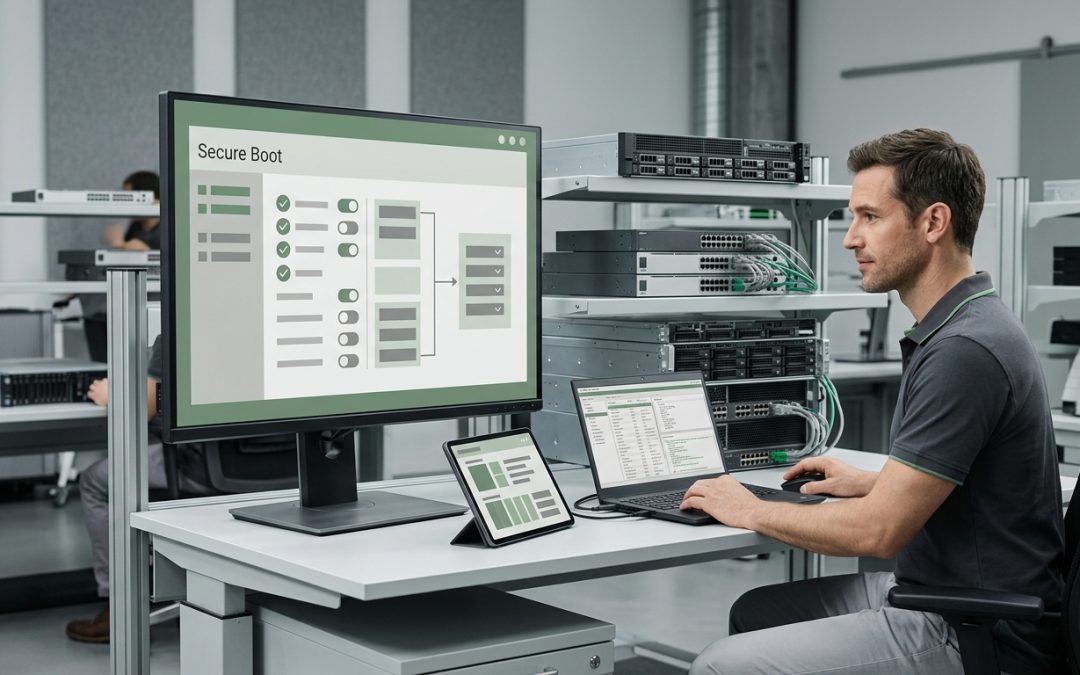
How Secure Boot Affects Your Wiping Process
Secure Boot is a security feature built into the UEFI firmware of modern computers. It ensures that only trusted, digitally signed software can run during the boot process, protecting against bootkits, rootkits, and other malicious code that might try to load before the operating system starts. While Secure Boot is valuable for operational security, it can create practical complications during data destruction that IT teams need to understand and plan for.
What Secure Boot Does
When a computer with Secure Boot enabled powers on, the UEFI firmware checks the digital signature of each piece of software that loads during the boot sequence. This includes the bootloader, the operating system kernel, and any boot-time drivers. If any component does not have a valid signature from a trusted authority (stored in the UEFI’s signature database), the firmware refuses to load it.
The trust chain is managed through a set of cryptographic keys stored in the UEFI firmware. The Platform Key (PK) is at the top of the hierarchy, followed by Key Exchange Keys (KEK), and the database of allowed signatures (db) and forbidden signatures (dbx). On most consumer and business PCs, the default trust chain includes Microsoft’s signing keys, which allows Windows and most major Linux distributions to boot normally.
The Data Destruction Problem
Many data destruction tools operate as bootable media. You boot the computer from a USB drive or network source that runs specialised wiping software instead of the installed operating system. This software then accesses and overwrites the computer’s internal storage drives.
The problem arises when the bootable wiping tool is not signed with a key that Secure Boot trusts. If the wiping software’s bootloader is not in the UEFI’s allowed signature database, Secure Boot will prevent it from loading. The computer will either refuse to boot from the wiping media entirely, display an error message about untrusted software, or fall back to booting the installed operating system, which defeats the purpose of external wiping.
Solutions for Secure Boot Environments
Use a Secure Boot compatible wiping tool: Many modern data destruction tools now ship with bootloaders signed by Microsoft or another recognised certificate authority, making them compatible with Secure Boot. When selecting a wiping tool, verify that it supports Secure Boot out of the box. Major enterprise wiping solutions from established vendors have generally adopted signed bootloaders.
Temporarily disable Secure Boot: If the wiping tool is not Secure Boot compatible, Secure Boot can be temporarily disabled in the UEFI settings. Enter the UEFI setup (typically by pressing F2, Delete, or another key during boot), navigate to the Security or Boot section, and disable Secure Boot. After the wipe is complete and before the system is released for reuse or disposal, the UEFI should be reset to factory defaults as part of the firmware sanitisation process.
Enrol custom keys: For organisations with advanced UEFI management capabilities, it is possible to enrol the wiping tool’s signing key into the UEFI’s allowed signature database. This allows the wiping tool to boot with Secure Boot enabled. This approach is practical for enterprise environments with fleet management tools that can push UEFI configuration changes to multiple systems.
Use PXE network boot: Some organisations boot their wiping environments from the network using PXE (Preboot Execution Environment). If the PXE boot infrastructure uses a signed bootloader, it can work with Secure Boot enabled. This is a common approach in enterprise data destruction operations where large numbers of systems need to be wiped efficiently.
BIOS Password Complications
Secure Boot settings are often protected by a BIOS/UEFI setup password. If the password is set and unknown (which can happen with equipment received from departing employees or acquired through mergers), accessing the UEFI settings to disable Secure Boot becomes an additional challenge.
Some manufacturers provide master passwords or password reset procedures for enterprise customers. Others require the device to be sent to an authorised service centre for password clearance. For situations where the BIOS password cannot be cleared and the wiping tool cannot boot with Secure Boot enabled, removing the storage drives and wiping them in a different system is an alternative approach.
Secure Boot Key Data During Disposal
The Secure Boot keys stored in the UEFI firmware represent a data category that should be addressed during disposal. Custom keys and certificates installed by the organisation could potentially be extracted and used to sign malicious code that would be trusted by other systems with the same Secure Boot configuration.
Resetting the UEFI to factory defaults as part of the firmware sanitisation process clears custom Secure Boot keys and restores the default trust chain. This step should be included in the disposal checklist for all systems with UEFI firmware.
Impact on Different Device Types
Secure Boot is standard on modern Windows PCs and laptops. Most Windows devices ship with Secure Boot enabled by default. The impact on data destruction processes is most commonly encountered when wiping these systems.
Servers also support Secure Boot, though the implementation may differ slightly between server platforms. HPE, Dell, and Lenovo servers all support Secure Boot, and the same considerations around wiping tool compatibility apply.
Apple Mac computers use a different security framework (Apple Secure Boot and the T2/M-series security chips) rather than UEFI Secure Boot. Mac-specific data destruction procedures are required for these systems, and standard PC wiping tools cannot be used.
Secure Boot is a security feature that protects systems during normal operation. With proper planning, it does not need to be an obstacle to effective data destruction. The key is to test and validate your wiping process against your hardware fleet’s Secure Boot configuration before it becomes urgent.
EWV provides NIST 800-88 certified data destruction for Victorian businesses, covering software-based erasure and physical destruction with full chain-of-custody documentation. Request a quote to discuss your requirements.